
Let’s discuss all things resumes by highlights key facts and debunking some myths! Do you know that roughly 98% of Fortune 500 companies, many recruitment agencies and some smaller businesses now use Applicant Tracking Systems (ATS) to manage job applications. And yet, despite all the hype, most of the fear around ATS boils down to one thing: confusion.
I shall be upfront. The myth that ATS software automatically rejects large amounts of resumes before a human, is not entirely accurate. The real issue is not automatic rejection—it’s invisibility. If your resume does not parse properly, it might as well not exist. And this is becoming a bigger problem for candidates, even if you are highly qualified for the job.
Resume Parsing and Keyword Matching:
This is where the confusion for job seekers starts. What is ATS parsing; parsing is the very first step an ATS takes after your resume is uploaded. The system scans your file and tries to break it down into structured, labelled data points: job titles, employer names, start and end dates, degrees, certifications, etc. It’s like taking a picture of your resume and trying to turn it into a database record.
If something in your resume layout or formatting prevents that text from being accurately extracted and categorised, the parsing fails. This means even if your resume contains all the right experience, the ATS might misplace or entirely miss that information—leaving you out of consideration.
And what about keyword matching; this step happens after parsing. The ATS searches the parsed text for specific keywords and phrases from the job description. It is looking for matches in skills (people and technical), job titles, and industry-specific language. This helps recruiters filter large volumes of applicants based on relevance.
So, here’s the bottom line: If your resume does not parse correctly, keyword matching will not matter. You could have the perfect mix of experience and skills, but if the ATS cannot extract that information properly, it will not register in the system. Let’s break this down:
Parsing = making sure your resume is readable by the ATS (like scanning a document into searchable text). Parsing comes first.
Keyword matching = making sure your content aligns with the job description (like running a search query against that text).
If the ATS cannot extract your information into the right categories, keyword optimisation will not help. You could have a 90% keyword match score (using an online tool such as Jobscan ATS Resume Checker), but if your job titles are jumbled or your dates are not recognised, your resume might not even surface in a recruiter’s search.
Use Online Templates with Caution:
Many job seekers use popular design tools like Canva, believing that saving their resume as a PDF guarantees ATS compatibility. This is a dangerous misconception. While PDFs can be ATS-friendly, resumes created in Canva or similar graphic design platforms often fail parsing for two reasons:
1. Complex Layouts Cause Jumbled Parsing:
Canva resume templates often use multi-column layouts, intricate designs, or overlapping elements to look visually appealing. These can confuse ATS, which read text linearly (left to right, top to bottom). Even if the text is extractable, the jumbled output can make your resume unreadable in the ATS database.
2. Non-Searchable PDFs Act Like Images:
Not all PDFs are created equal. Some Canva exports (or those from other design tools) produce image-based PDFs rather than text-based, searchable ones. If you cannot select and copy text from your PDF, the ATS cannot read it either. This means essentially your resume is treated as a picture, leaving it blank in the system.
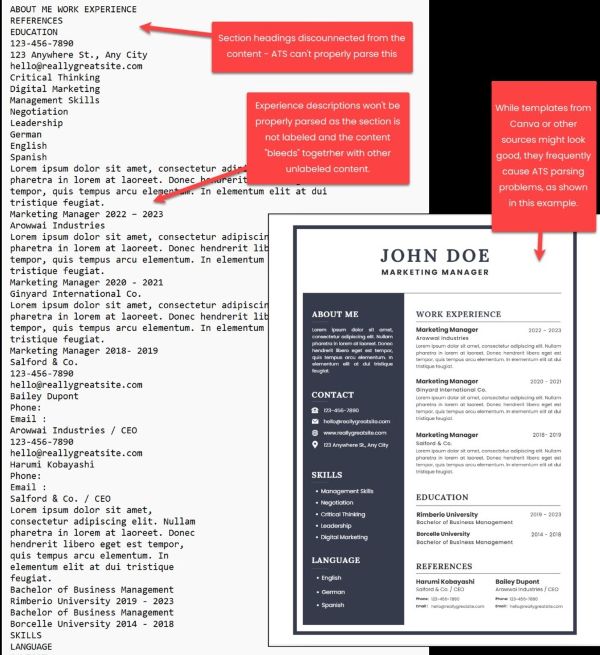
-Image from Distinctive Resume
Myths vs Facts:
Myth 1: ATS cannot read tables at all.
Reality: Simple tables, like a two-column list of skills, often parse fine in modern ATS. The issue is complex tables or merged cells that can disrupt reading order. To be safe, unless you are using an ATS-friendly resume template avoid tables.
Myth 2: You must use fonts like Arial or Times New Roman.
Reality: This is outdated. ATS parse text content, not styling, so font choice does not affect parsing in .docx files. For PDFs, the key is ensuring fonts are embedded (most modern tools like Word do this automatically). Non-standard fonts only cause issues if unembedded, making text unreadable. That said, I recommend clean, readable fonts like Calibri or Cambria to ensure consistent display across platforms, especially for human reviewers.
Myth 3: Fancy bullets ruin parsing.
Reality: Non-standard bullets (like stars or arrows) might turn into junk characters (e.g., “?”) when converted to plain text, but the actual content typically remains intact. This is a cosmetic issue for human readability, not a parsing problem.
Myth 4: Graphics break your resume in ATS.
Reality: ATS simply ignore graphics. The problem occurs when critical information such as your name, job titles, and skills—is embedded into a graphic. Text inside logos or image-based headers cannot be extracted. Decorative graphics are fine, but never place essential text content inside images.
Common FAQs:
What is ATS parsing, and why is it important?
ATS parsing is when an Applicant Tracking System extracts text from your resume and organises it into fields like job titles or skills. If parsing fails, your resume may be invisible to recruiters, even with perfect keywords.
How is parsing different from keyword matching?
Parsing is the technical process of extracting and categorising text; keyword matching checks if that text aligns with a job description. Parsing comes first—if it fails, keywords will not matter.
Will using Canva for my resume ruin ATS parsing?
Not necessarily, but Canva’s complex layouts and multi-columns can jumble text, and some PDFs may be image-based, and not searchable. Use Microsoft Word-based templates or hire a Resume Writer for clean, ATS-friendly designs.
How do I know if my PDF is searchable for ATS?
Open your PDF in Adobe Reader, press Ctrl+F, and search for a word. If it’s not selectable, it’s an image-based PDF and won’t parse. Recreate it using Word’s “Save as PDF” for a searchable file.